Bestiary Subscreen Framework
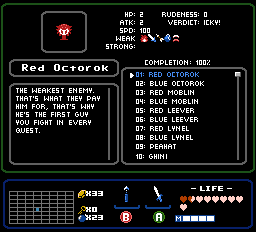
Overview
Creator:
Moosh
Added: 12 Apr 2026
Tags:
2.55
Downloads: 26
|
Download Example (2.2 MB) |

Information
This is a framework for a bestiary subscreen. As with all things subscreen related, it's a bit messy so expect a more involved setup than usual if you want to use it.
Description Setup Reviews Comments
Subscreen Setup
For starters, you'll need to build a new page on your subscreen with the proper elements and labels for the script. These are all listed in a comment at the top of the script file. Many elements are optional so include all the stuff you think you'll need. See the example quest for what a finished setup will look like.
Constants
Look over the list of constants at the top of the script and set them up for your quest. The most important ones are BESTIARY_PAGE, the tiles for scrollbars and selectors, and the list of colors for text.
InitEnemies() function
The next step is filling out the enemy table itself which will require getting your hands dirty with some ZScript. Go to the InitEnemies() function and read over the comments explaining what it all does. Replace the enemy data from the example quest with your own. Start out small with just a couple of enemy entries to be sure everything is working.
Every enemy entry will require at the least:
Once you're done entering the data, compile the script and assign the script to your subscreen in the Script tab under Options->Subscreen Settings. If you already have a subscreen script, you'll need to combine it with the SubscreenExample script. Else you can just use that script.
This script requires std.zh and StringWrapping.zh.
For starters, you'll need to build a new page on your subscreen with the proper elements and labels for the script. These are all listed in a comment at the top of the script file. Many elements are optional so include all the stuff you think you'll need. See the example quest for what a finished setup will look like.
Constants
Look over the list of constants at the top of the script and set them up for your quest. The most important ones are BESTIARY_PAGE, the tiles for scrollbars and selectors, and the list of colors for text.
InitEnemies() function
The next step is filling out the enemy table itself which will require getting your hands dirty with some ZScript. Go to the InitEnemies() function and read over the comments explaining what it all does. Replace the enemy data from the example quest with your own. Start out small with just a couple of enemy entries to be sure everything is working.
Every enemy entry will require at the least:
- An associated enemy ID
- An 8-bit tile block (size depends on the tile block element on the subscreen)
- The enemy's name
- The enemy's description
- An array of custom numeric stats
- Up to three arrays of icons. These are offsets from the tile assigned to the BESTIARY_STAT_ICONS_ widget.
- Up to three additional strings
Once you're done entering the data, compile the script and assign the script to your subscreen in the Script tab under Options->Subscreen Settings. If you already have a subscreen script, you'll need to combine it with the SubscreenExample script. Else you can just use that script.
This script requires std.zh and StringWrapping.zh.