Mooshop
Overview
Creator:
Moosh
Updated: 24 Feb 2026
Tags:
2.55,
FFC,
Generic
Downloads: 36
|
Download Example (2.22 MB) |

Information
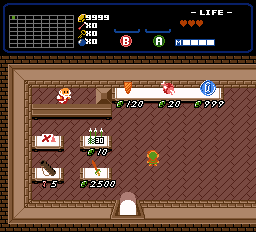
I now present to you: The Mooshop. This should be the most feature complete and in depth shop script submitted to date with tons of customization. I offer you this script with but one condition...
You've gotta grin and bear the punny name.
You've gotta grin and bear the punny name.
Description Setup Reviews Comments
Start by setting up all the constants at the top of the script based on the comments provided. If you have other scripts that use the Screen->Data[] array, set SHOP_SCREENDATA_START_INDEX to the last index used by those.
To set up a shop with this script, you'll need to create combos to represent all your items. The graphics don't matter. Set the MooshopData script in the script tab of the combo editor to get annotation data for all the fields used by the script. When your item or items are finished, place down an FFC with the Mooshop script. This should have the "Invisible to Lens" and "Only Visible to Lens" flags checked. Set either its combo graphic or its first argument to the first of the combos you want to use for your items. Once again all the argument fields are annotated in the editor.
If you're using Shop Types 1 or 2, you can have multiple copies of the same FFC settings to create a pool of items that will be automatically filled.
There's a lot of customization here so I'm not gonna further overwhelm with instructions. Play around with the settings and see what you can make. You can also check out the example quest for working examples of features.
This script only requires std.zh.
To set up a shop with this script, you'll need to create combos to represent all your items. The graphics don't matter. Set the MooshopData script in the script tab of the combo editor to get annotation data for all the fields used by the script. When your item or items are finished, place down an FFC with the Mooshop script. This should have the "Invisible to Lens" and "Only Visible to Lens" flags checked. Set either its combo graphic or its first argument to the first of the combos you want to use for your items. Once again all the argument fields are annotated in the editor.
If you're using Shop Types 1 or 2, you can have multiple copies of the same FFC settings to create a pool of items that will be automatically filled.
There's a lot of customization here so I'm not gonna further overwhelm with instructions. Play around with the settings and see what you can make. You can also check out the example quest for working examples of features.
This script only requires std.zh.