You're apparently using the newest version of stdExtra, which doesn't compile because it had an undeclared dependency.
Comment out lines 583, through 595 in the current stdExtra.zh, v3.2: (the function 'drawTime'), that relies on external functions, and declarations, not native to, or otherwise in the header.. (MoscowModder added this to the latest version of stdExtra.zh, but didn't add the dependencies for the drawTime function, and I don't have any idea where to find those, so I commented out that function as well; for I haven't a present need for drawTime() in my projects.)
Thunder Rod, Bolt Spell, Lightning Rod
Overview
Creator:
Timelord
Added: 30 Apr 2014
Tags:
FFC,
Item
Downloads: 71
|
View Script
Download Example (950.98 KB) |
Information
A custom item script for lightning magic.
Description Setup Reviews Comments
Step One: If you do not have them already, download FFCScript.zh and stdExtra.zh and place them in your ZQ directory. If you are using this script as your base, leave the lines at the top that import these scripts (and std.zh) intact. If you are adding this to a script, disable any of these import lines that you already have in your main script, either by deleting them or by placing two slashes before them.
Step Two: Add the sound effects (links below, or select your own) to your quest in Quest->Audio->SFX Data, using the unassigned slots (staring at No. 61). Note the number of each sound as you assign them.
Step Three: using the number you noted for the sound effects, change these lines in the script to match the numbers of the sound effects as you assigned them.
If you wish to force a delay between when Link uses Bolt and when he can next use Bolt, set the value of NOUSE to a value higher than zero. (Note: This will also affect any other weapon that the player switches to; thus, if Bolt is set to 'B', then fired, and the player changes to a boomerang on 'B', the boomerang will share this delay.)
The time is measured in frames and there are generally sixty (60) frames per second, so if you set NOUSE = 60, then Link can only fire at a rate of one shot per second; if you set NOUSE = 90, then Link can fire a shot every 1 1/2 seconds.
If you are using little MP for the item, you may wish a longer delay time. If Link must use a good deal of MP to use this item/spell, you should probably set a short delay time. If you set a value of 0 here, Link can continually fire for as long as he has enough MP. If you set both NOUSE and MP cost (later) to zero, link can fire continually.
Step Four: Open the tile page sheet for your quest, and click grab; then click file, select the file bolt_sprites.png and click leech. Set colour depthi to 8 and click OK. Note the combo page that the tiles that you just imported are now on. (In an empty quest, this is usually page 47.)
Go to the Item Misc. sprite editor (Quest->Graphics->Sprites->Weapons/Misc.) and scroll down until you see the unused slots (starting with zz88). Select one of these, and click edit; change the name from zzXXX to Bolt, then click on the empty (black) tile box. This will open the tile page sheets.
Go to the tile page where your imported tiles are located.(Quick Tip: hit the 'P' key on your keyboard and type the page number, followed by Enter/Return.)
Select the yellow lightning bolt sprite (ten down from the top, and the second over from the left edge) by double clicking it. This will place it in the box in the Weapons/Misc sprite editor. Then, change animation frames to 2 and animation speed to 5.
Be sure to remember the sprite number!
Step Five: Go to the script importation box (Quest->Scripts->Compile ZScript...). Once there, click import. You will be asked if it is acceptable to clear the current buffer: Click yes and select the file Bolt.z, then click OK, and then click compile. The script will now compile, and you will be asked to assign scripts to slots.
Step Six: Once you have compiled the script, you will see the script slots assignment pane. This starts you out viewing FFC Scripts. Assign the FFC script Flashscreen to a slot, and note what slot it is in. Then click the tab Item, where you will see the item script slots. Here, you assign the scripts BoltSpell and ffcitem to item script slots. (You do not need to note these numbers.)
Check the box 'Output ZASM code to Allegro.log' if you wish to track any errors reported by ZASM, and then click OK. When you see the success report window, click OK there as well.
Step Seven: Open the Item Editor (Quest->Items), and select either one of the Custom Items items, or one of the zzXXX items items (e.g. zz101). (For this example, we will use Custom item 01.)
Step Eight: In the item editor, change the Item Class to a unique item class that you do not plan to use elsewhere. Select one of the Custom Item Classes, or a zzXXX class (e.g. as zz089). For this example, we use Custom Itemclass 01. (You can change this later, if you desire, but you will also need to change your subscreen to match if you do.)
Check the box Equipment Item, and click the GFX tab. Click on the blank (black) tile, and again go to the page where you imported the tilesheet bolt_sprites.png, or to any other page containing the sprite that you want to set for the item. Select a sprite to represent the item, and set its animation frames and animation speed, as you desire. The bolt_sprites.png tilesheet has several alternative wand and staff items, although a medallion or custom sprite is all fine. That's up to you.
Next, click on the Scripts tab, and set the action script to the script BoltSpell.
Set the arguments (D0-D8) as follows:
D0: This is the amount of damage that the projectile lightning bolt does to enemies it hits.
D1: This is the sprite you selected in the Weapons/Misc editor. Therefore, if you set the lightning bolt sprite to be Weapons/Misc. sprite 88, make the value of D1 '88' (no quotes).
D2: Set this to the amount of MP that you wish Link to spend each time he uses this item. Note that a single magic container has 32MP.
D3: Set this to the speed you wish the lightning bolt projectile to travel in pixels per second. A value of 200-240 is good here.
D4: Set this to the FFC slot number that you noted when you set the FFC Script FlashScreen.
D5: Set this to the colour of the flash. If using the classic tileset, a value of '1' (no quotes), which is white, and often works best. If you are using another tileset, or another colour palette, find out where the colour is in your palette that you wish the screen to flash (for lightning effects) in Quest->Graphics->Palettes->Main. The number of this value must be decimal, starting at zero. Each row contains sixteen colours, so count the rows, and then the number of swatches from left to right to deduce what colour number of your palette you are using.
D6: This is the duration of the flash in frames.The best number here is '45' (no quotes).
D7: This is the amount of damage that the spell does to all enemies on-screen during the flash effect. This is best set to 1, or possibly 2 in a difficult game. You can set this to '0' (no quotes) if you wish no global damage.
When you have set all of the arguments, click OK.
You have completed set-up of this item.
Step Two: Add the sound effects (links below, or select your own) to your quest in Quest->Audio->SFX Data, using the unassigned slots (staring at No. 61). Note the number of each sound as you assign them.
Step Three: using the number you noted for the sound effects, change these lines in the script to match the numbers of the sound effects as you assigned them.
const int ThunderSFX = 0; //Set to the sound in Quest->Audio->SFX Data to the sound you wish to use as a thunder effct (.wav option included in this package)
const int SFX_ERROR = 0; //Set to your global error sound effect, or any specific error SFX you wish from Quest->Audio->SFX Data.
For example: If you set the thunder.wav sound to slot 61, and the error.wav sound to slot 62, you would set these lines as follows:
const int ThunderSFX = 61; //Set to the sound in Quest->Audio->SFX Data to the sound you wish to use as a thunder effct (.wav option included in this package)
const int SFX_ERROR = 62; //Set to your global error sound effect, or any specific error SFX you wish from Quest->Audio->SFX Data.
If you wish to force a delay between when Link uses Bolt and when he can next use Bolt, set the value of NOUSE to a value higher than zero. (Note: This will also affect any other weapon that the player switches to; thus, if Bolt is set to 'B', then fired, and the player changes to a boomerang on 'B', the boomerang will share this delay.)
The time is measured in frames and there are generally sixty (60) frames per second, so if you set NOUSE = 60, then Link can only fire at a rate of one shot per second; if you set NOUSE = 90, then Link can fire a shot every 1 1/2 seconds.
If you are using little MP for the item, you may wish a longer delay time. If Link must use a good deal of MP to use this item/spell, you should probably set a short delay time. If you set a value of 0 here, Link can continually fire for as long as he has enough MP. If you set both NOUSE and MP cost (later) to zero, link can fire continually.
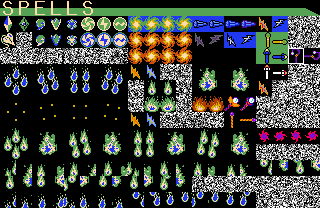
Step Four: Open the tile page sheet for your quest, and click grab; then click file, select the file bolt_sprites.png and click leech. Set colour depthi to 8 and click OK. Note the combo page that the tiles that you just imported are now on. (In an empty quest, this is usually page 47.)
Go to the Item Misc. sprite editor (Quest->Graphics->Sprites->Weapons/Misc.) and scroll down until you see the unused slots (starting with zz88). Select one of these, and click edit; change the name from zzXXX to Bolt, then click on the empty (black) tile box. This will open the tile page sheets.
Go to the tile page where your imported tiles are located.(Quick Tip: hit the 'P' key on your keyboard and type the page number, followed by Enter/Return.)
Select the yellow lightning bolt sprite (ten down from the top, and the second over from the left edge) by double clicking it. This will place it in the box in the Weapons/Misc sprite editor. Then, change animation frames to 2 and animation speed to 5.
Be sure to remember the sprite number!
Step Five: Go to the script importation box (Quest->Scripts->Compile ZScript...). Once there, click import. You will be asked if it is acceptable to clear the current buffer: Click yes and select the file Bolt.z, then click OK, and then click compile. The script will now compile, and you will be asked to assign scripts to slots.
Step Six: Once you have compiled the script, you will see the script slots assignment pane. This starts you out viewing FFC Scripts. Assign the FFC script Flashscreen to a slot, and note what slot it is in. Then click the tab Item, where you will see the item script slots. Here, you assign the scripts BoltSpell and ffcitem to item script slots. (You do not need to note these numbers.)
Check the box 'Output ZASM code to Allegro.log' if you wish to track any errors reported by ZASM, and then click OK. When you see the success report window, click OK there as well.
Step Seven: Open the Item Editor (Quest->Items), and select either one of the Custom Items items, or one of the zzXXX items items (e.g. zz101). (For this example, we will use Custom item 01.)
Step Eight: In the item editor, change the Item Class to a unique item class that you do not plan to use elsewhere. Select one of the Custom Item Classes, or a zzXXX class (e.g. as zz089). For this example, we use Custom Itemclass 01. (You can change this later, if you desire, but you will also need to change your subscreen to match if you do.)
Check the box Equipment Item, and click the GFX tab. Click on the blank (black) tile, and again go to the page where you imported the tilesheet bolt_sprites.png, or to any other page containing the sprite that you want to set for the item. Select a sprite to represent the item, and set its animation frames and animation speed, as you desire. The bolt_sprites.png tilesheet has several alternative wand and staff items, although a medallion or custom sprite is all fine. That's up to you.
Next, click on the Scripts tab, and set the action script to the script BoltSpell.
Set the arguments (D0-D8) as follows:
D0: This is the amount of damage that the projectile lightning bolt does to enemies it hits.
D1: This is the sprite you selected in the Weapons/Misc editor. Therefore, if you set the lightning bolt sprite to be Weapons/Misc. sprite 88, make the value of D1 '88' (no quotes).
D2: Set this to the amount of MP that you wish Link to spend each time he uses this item. Note that a single magic container has 32MP.
D3: Set this to the speed you wish the lightning bolt projectile to travel in pixels per second. A value of 200-240 is good here.
D4: Set this to the FFC slot number that you noted when you set the FFC Script FlashScreen.
D5: Set this to the colour of the flash. If using the classic tileset, a value of '1' (no quotes), which is white, and often works best. If you are using another tileset, or another colour palette, find out where the colour is in your palette that you wish the screen to flash (for lightning effects) in Quest->Graphics->Palettes->Main. The number of this value must be decimal, starting at zero. Each row contains sixteen colours, so count the rows, and then the number of swatches from left to right to deduce what colour number of your palette you are using.
D6: This is the duration of the flash in frames.The best number here is '45' (no quotes).
D7: This is the amount of damage that the spell does to all enemies on-screen during the flash effect. This is best set to 1, or possibly 2 in a difficult game. You can set this to '0' (no quotes) if you wish no global damage.
When you have set all of the arguments, click OK.
You have completed set-up of this item.