
Great script! I would have preferred a global version, but this is pretty awesome either way. First time I've seen someone script the bush animation ;O
Only issue is the lenghts you have to go to set this up throughout your quest.
Custom Combo SFX, Animations, and Dropsets
Overview
Creator:
Moosh
Updated: 11 Jul 2019
Tags:
FFC,
Global
Downloads: 69
|
View Script
Download Example (1.72 MB) |
Information
A script for giving slash combos (and other combos) special SFX, animations, dropsets, or a combination of the three.
Description Setup Reviews Comments
Place an invisible ComboSFXAnim ffc on the screen and set its arguments as follows:
Combine the example global script with your own. Then find this part in the script (you can Ctrl+F for "//AUTO SLASHABLES HERE"):
Copy the example function below and change the numbers to match what you'd put on an FFC for its respective arguments. You can have one of these for each unique slashable combo for up to 256 of them. This is a very experimental thing so I can't guarantee it will work perfectly and without any performance drops when a lot of them area added. For less common slashables you may still want to place the FFCs manually.
Requires std.zh and ffcscript.zh.
- D0: The combo ID to check for. When any combo with this ID switches to a different one, the sound and animation will play. If D0 is negative, the animation will play every time the combo changes. Else it will only play when it switches off the specified combo ID.
- D1: The SFX to play
- D2: The type of animation:
- 0: No animation
- 1: Sprite Animation - Creates a sprite from weapons/misc over the combo.
- 2: ZC Bush Animation - Draws tiles loosely replicating the bush animation other slash combos use
- 3: Spreading Particles - Sends particles in a 360 degree spread outwards
- 4: Aimed Particles - Sends particles in a 40 degree spread away from Link's position
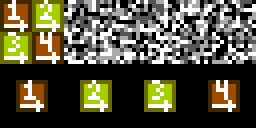
- D3: GFX for the animation. If this is a sprite, it's an ID from weapons/misc. Otherwise it's a tile. Bushes use four 8x8 pixel centered tiles, see the example image for how this translates from ZC's minitile setup.
- D4: The CSet to use. If the GFX are a sprite, you can actually change it's CSet here by setting it >0, else it will use the default.
- D5: Number of frames in the animation. Doesn't work for bush or sprite animations.
- D6: Animation frames (60ths of a second) for the animation. If it's set to 0, it will animate once to fit the duration of the particle.
- D7: If > 1, it will randomize particle GFX from a pool of a desired length. Tiles should all go in sequential order with the full animation set up for each option. If < 0, this sets the item dropset for the combo (Misc Data->Item Drop Sets).
Combine the example global script with your own. Then find this part in the script (you can Ctrl+F for "//AUTO SLASHABLES HERE"):
		//AUTO SLASHABLES HERE
		//Add your auto slashables with the provided function here
		//                                                         COMBO   SFX     TYPE    GFX     CS      FRAMES  ASPEED  RAND/DROPSET
		//EXAMPLE:
		//CSA_AddAutoSlashable(autoSlashableID, autoSlashableData, 7680,   41,     2,      52020,  2,      0,      0,      0); //Bush - Green


		//End of auto slashables
Example setup from the test quest
Copy the example function below and change the numbers to match what you'd put on an FFC for its respective arguments. You can have one of these for each unique slashable combo for up to 256 of them. This is a very experimental thing so I can't guarantee it will work perfectly and without any performance drops when a lot of them area added. For less common slashables you may still want to place the FFCs manually.
Requires std.zh and ffcscript.zh.