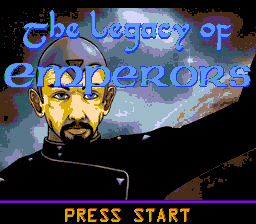
Start/Title Screen
Overview
Creator:
Timelord
Updated: 24 May 2014
Tags:
FFC
Downloads: 94
|
View Script
Download Package (14.36 MB) |

Information
This FFC script allows you to make a title screen, that will start your game, when the player presses the 'START' button, and has options to play sound effects, and control settings for initial screen destinations.






Description Setup Reviews Comments
Last Updated: 24th May, 2014
Initial Set-Up
Important: Set the FFC running this script to 'Run at Screen Init'.
Assign values to the FFC Script Arguments, as follows:
D0: This is the SFX file to play, when the player presses 'START'. Set this from Quest->Audio->SFX Data, and pay attention to the length of the SFX file, as you will need to match or exceed that time, for the next setting.
D1: This is the delay time to use, if you are generating sound effect when the player presses the 'START' button. For every 1-second of play-length, you will need to add +60 to this timer.
Examples:
You may also wish to pad some time, after the SFX plays, to avoid a sharp cut, directly into other music.
D2: If you are using the 'Direct Warp' method (see below), enter the DMAP number of your destination here. (Note: use the DMAP number, from Quest-DMAPS, not the 'MAP' number. DMAP values start at 0, and end at 511.)
D3: If you are using the 'Direct Warp' method (see below), enter the Screen number of your destination here. (Note: This uses Warp-Return A.)
D4: Set this to a value of 1, or greater, if you wish to use Screen->Secrets, instead of Direct Warps.
Direct Warps
If using direct warps, the player will be warped to the initial 'play' screen of the game, with no special transition. I've tried to add transitions, but doing this, causes a variety of problems, due to how any Wait() operation works, in conjunction with the subscreen. (Thank you, MasterManiac, for this information.)
Direct Warps will place the player at Warp Return A, on the DMAP, and Screen that you set in Arguments D2, and D3, respectively.
Screen Secret Warps
In place of direct warps, you may use a Screen->Secrets Warp, by following these instructions.
Select (or create) a combo, with the type 'Sensitive Warp'. You can use any type (A, B, C, or D) for this, and will need to know the type.
You're done! The majority of work associated with using this script, is in designing your title (or other transition) screens, and effects.
Initial Set-Up
- Import this FFC script, into your other script files; or otherwise append it to your normal script files, and compile it.
- Assign the FFC 'titleScreen' to an FFC slot.
- Design a title screen; preferrably using FFCs, set to draw over the player. (You may animate, or script moving FFCs, if you wish to go through that effort, and retain compatibility with this FFC script.)
- Place one FFC on the screen, that runs this script, and be sure to set 'Run at screen init.' in the FFC Flags, for this script. I find it best to attach this to an invisible FFC, using 'Combo 1', but you can technically attach it to any FFCs on your title screen.
- Go to Screen->Screen Data, then select the S.Flags 1 tab, and enable the option 'Link is Invisible'.
Important: Set the FFC running this script to 'Run at Screen Init'.
Assign values to the FFC Script Arguments, as follows:
D0: This is the SFX file to play, when the player presses 'START'. Set this from Quest->Audio->SFX Data, and pay attention to the length of the SFX file, as you will need to match or exceed that time, for the next setting.
D1: This is the delay time to use, if you are generating sound effect when the player presses the 'START' button. For every 1-second of play-length, you will need to add +60 to this timer.
Examples:
- For a 1-second SFX file, would set this value to 60;
- for a 1.5-second SFX file, you would set this value to 90;
- for a 4-second SFX file, you would set this value to 240.
You may also wish to pad some time, after the SFX plays, to avoid a sharp cut, directly into other music.
D2: If you are using the 'Direct Warp' method (see below), enter the DMAP number of your destination here. (Note: use the DMAP number, from Quest-DMAPS, not the 'MAP' number. DMAP values start at 0, and end at 511.)
D3: If you are using the 'Direct Warp' method (see below), enter the Screen number of your destination here. (Note: This uses Warp-Return A.)
D4: Set this to a value of 1, or greater, if you wish to use Screen->Secrets, instead of Direct Warps.
Direct Warps
If using direct warps, the player will be warped to the initial 'play' screen of the game, with no special transition. I've tried to add transitions, but doing this, causes a variety of problems, due to how any Wait() operation works, in conjunction with the subscreen. (Thank you, MasterManiac, for this information.)
Direct Warps will place the player at Warp Return A, on the DMAP, and Screen that you set in Arguments D2, and D3, respectively.
Screen Secret Warps
In place of direct warps, you may use a Screen->Secrets Warp, by following these instructions.
Select (or create) a combo, with the type 'Sensitive Warp'. You can use any type (A, B, C, or D) for this, and will need to know the type.
- Set D4, in FFC Script Arguments, of your titleScreen FFC, to a value of '1', or higher.
- In Screen->Secret Combos, go to the 'Misc.' tab, and set Secret-0 (Flag 16), to the combo you selected, or created, above.
- In Screen->Screen Data, go to the 'S.Data 2' tab, and change the value of 'Secret Sound;, to '): None'.
- Find the spot, where the player will initially stand on your start screen. If you are using arrival squares, this will be the position of the arrival square; otherwise, it will normally be Warp Return Point A, on the initial screen.
- Cage the player to one tile, using solid combos.
- Flag the centre of that cage, where the player is standing, with Flag-16.
- In Screen->Tile Warp, set the type of animation that you desire, for the warp transition, and set the coordinates, directing this warp, to the destination screen where you want the player to begin the game.
You're done! The majority of work associated with using this script, is in designing your title (or other transition) screens, and effects.