Right-click on any quest file (.QST) in Windows Explorer.
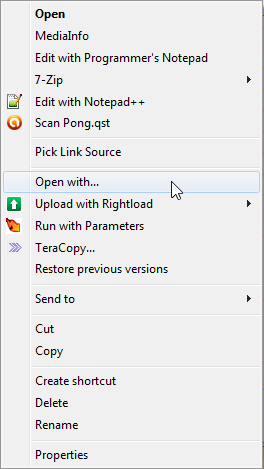
If you have never opened a QST file directly, you should choose Open. If you have opened a quest file in Explorer before, choose Open With...
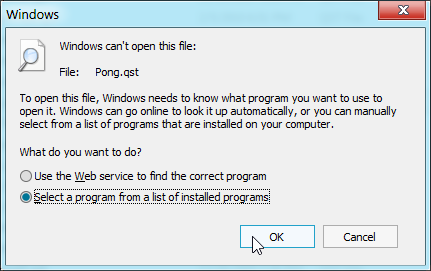
Select the second option shown above and press OK.
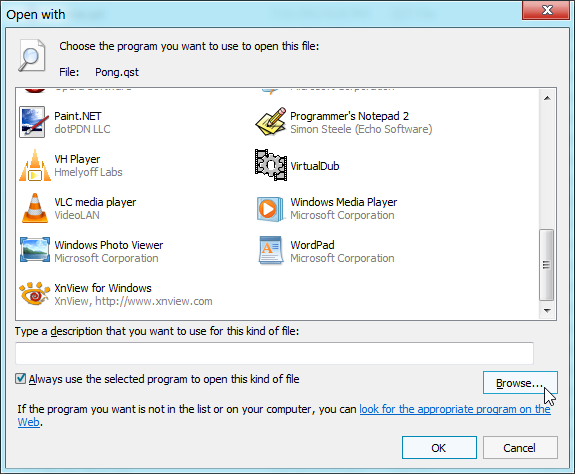
Unless you have a version of Windows 7 that has a psychic interface, it probably doesn't have ZCManager in this list of programs. So we need to add it manually. Press Browse.
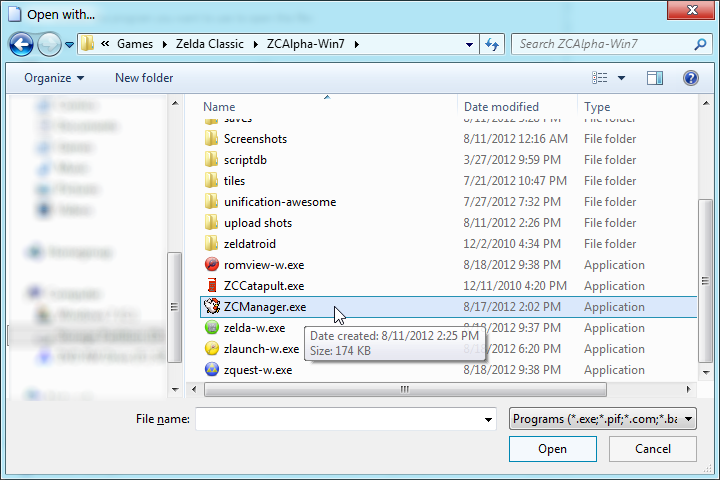
Find where you placed ZCManager.exe and select it. Press Open.
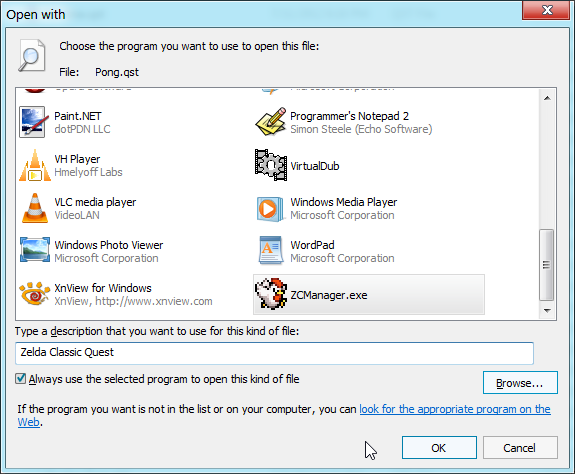
ZCManager.exe should now be in the list of files. Select it. You can also enter a description for this file type if you like. Make sure the option to always use the selected program is checked. Finally, press OK. ZCManager should now open up with the quest file. Double clicking on any quest files in explorer should also make them open with ZCManager.
Of course, it will also change all quest files to using the ZCM cucco icon. Unfortunately, this is something you cannot easily fix without getting into external file type management utilities... or making LinktheMaster a better ZCM icon. Though cuccos are awesome, so it would be hard to top that.